How to Navigate ACA Premiums in ProjectionLab
A step-by-step guide to modeling Affordable Care Act marketplace premiums in ProjectionLab, including how to find your unsubsidized plan cost and the SLCSP benchmark.

Health insurance is one of the trickiest line items to model for anyone planning early retirement in the United States. Affordable Care Act (ACA) marketplace premiums depend on your household income, your household size, and a handful of details specific to where you live. The Premium Tax Credit can move those numbers by thousands per year.
ProjectionLab models ACA coverage with a few targeted inputs that let you capture both your actual plan cost and the subsidy you should expect, with year-end reconciliation handled automatically. This article walks through what to enter, where to find each number, and why the second-lowest-cost Silver plan (SLCSP) matters even if you are not enrolled in it.
What you’ll need before you start
To model an ACA plan accurately, you need two distinct premium amounts:
- The full unsubsidized monthly premium for the plan you actually intend to buy.
- The monthly benchmark premium, defined as the second-lowest-cost Silver plan (SLCSP) in your rating area for your household.
The first determines what shows up in your cash flow. The second is the figure the Internal Revenue Service (IRS) uses to estimate your Premium Tax Credit, regardless of which plan you actually enroll in.
Important
Your subsidy is tied to the SLCSP, not to the plan you choose. If you pick a Bronze or low-cost Silver plan to save on premiums, you still get the same subsidy, and a portion of your premium can effectively be free.
Where to look up your premiums
The right source depends on which exchange your state uses. The federal exchange runs at healthcare.gov, but roughly twenty states operate their own. Either way, healthcare.gov is a reasonable starting point: when your state runs its own exchange, entering your zip code redirects you there. Your state’s exchange is the authoritative source for both numbers.
Federal exchange (healthcare.gov)
You can browse plans without creating an account by using the See plans and prices tool. Enter your zip code, household size, expected income, and the ages of each enrollee. Healthcare.gov will return a list of available plans with full unsubsidized premiums and an estimated subsidy based on the income you entered.
Make sure the prices you record are the full premiums, not the post-subsidy “your cost” amount. Toggle the price view if needed.
Estimating with the KFF subsidy calculator
For a quick estimate before you have an exchange account, the Kaiser Family Foundation (KFF) Health Insurance Marketplace Calculator is a useful planning tool. Enter your state, age, household size, and income. KFF returns an estimated SLCSP for your area along with the expected subsidy.
Note
KFF reports averages and may not exactly match your county’s rates. Treat its output as a planning estimate and confirm with healthcare.gov or your state exchange before locking in your numbers.
State-based exchanges
If you live in a state that operates its own exchange (for example, Covered California, NY State of Health, Pennie, MNsure, or Get Covered New Jersey), use that site instead. State exchanges sometimes:
- Default the displayed price to the post-subsidy cost, hiding the full premium until you click in further.
- Bundle add-on coverages such as dental or vision into the listed price.
- Use slightly different labels for the SLCSP, or never surface it directly.
Read the listings carefully and look for the gross, full, or before tax credit price. If your state exchange does not surface the SLCSP, you can usually identify it by sorting Silver plans by price and selecting the second-lowest entry for your specific household.
Caution
Always consult your own state’s exchange before finalizing your numbers. Display conventions and even available plans can vary, and a premium pulled from the wrong rating area can be off by hundreds per month.
Modeling ACA coverage in ProjectionLab
Once you have your two premium figures, the rest is quick.
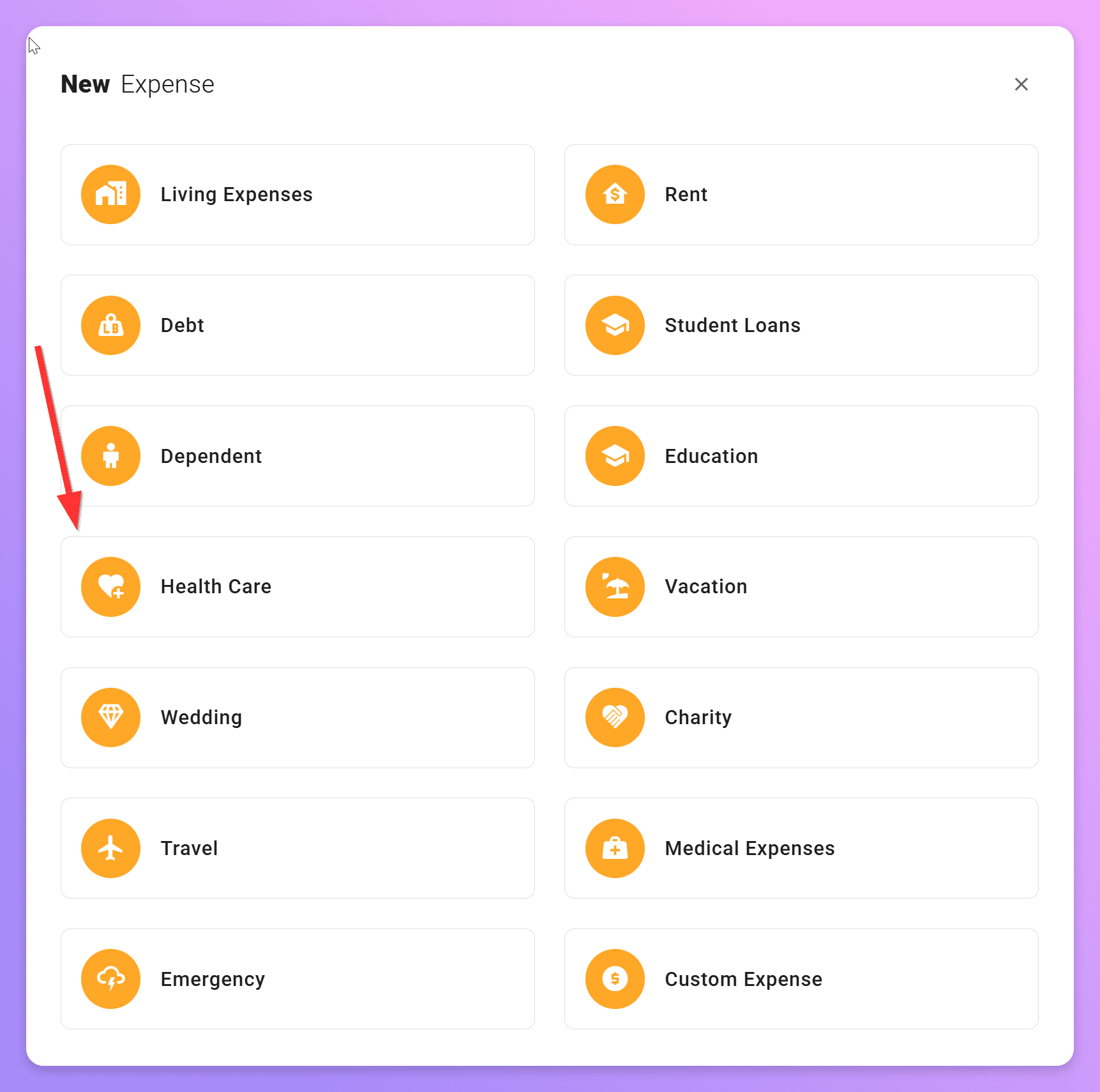
1. Add a Health Care expense
From your plan, add a new expense and choose Health Care as the category. If you already have a generic health-insurance expense, edit it instead.
2. Set the Healthcare Type to ACA Marketplace
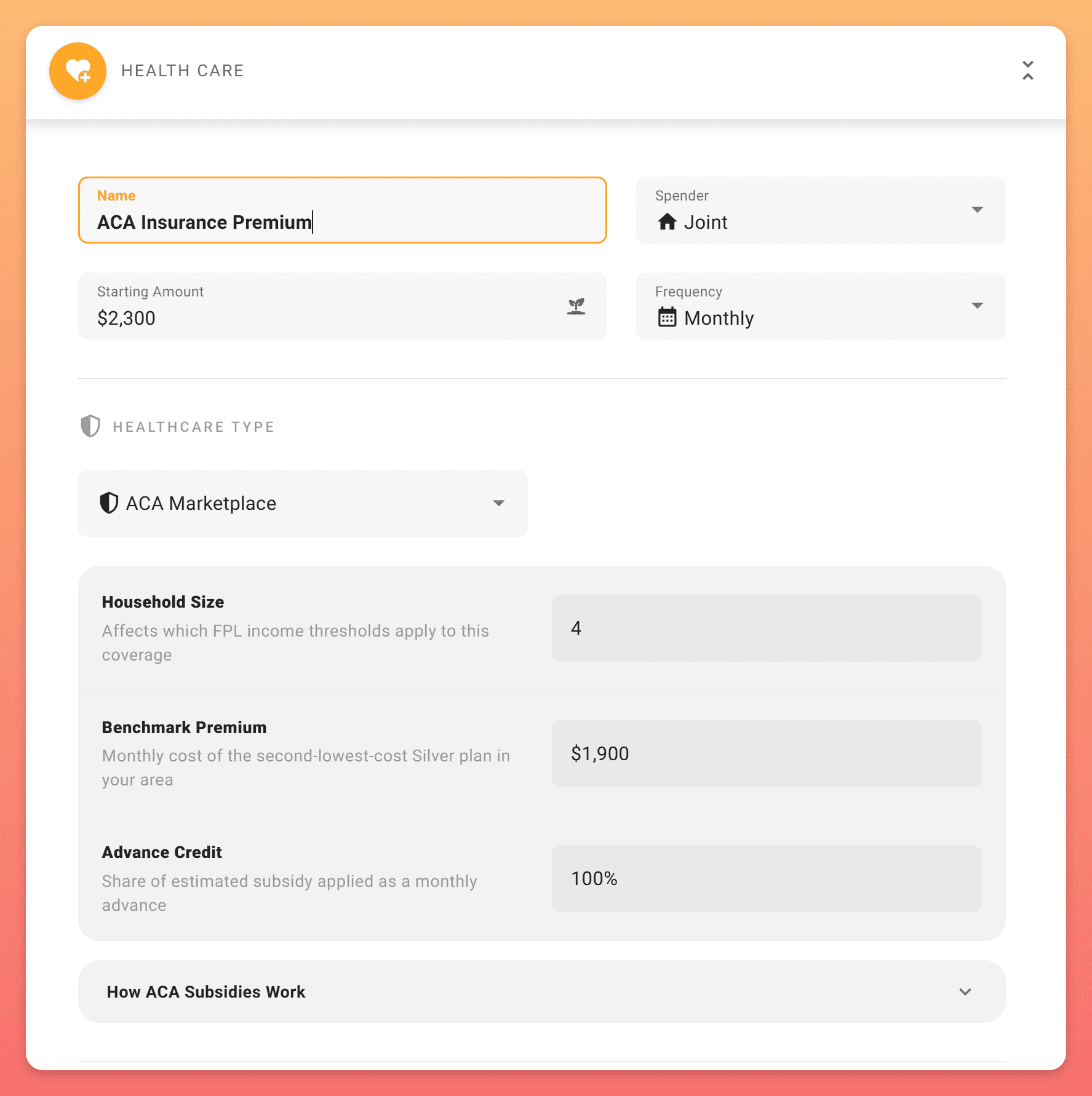
In the Health Care expense form, you’ll see a Healthcare Type selector. Pick ACA Marketplace. This unlocks the ACA-specific fields and tells the simulation engine to estimate your Premium Tax Credit each year.
Note
The ACA Marketplace option only appears when your plan involves the United States. If you don’t see it, check that your location is set to United States and your plan’s Tax Estimation mode is “Estimate for Me”.
3. Enter the full unsubsidized premium as the Starting Amount
In the Starting Amount field, enter your full unsubsidized premium, the actual cost of the plan you’d enroll in before any subsidy. ProjectionLab will subtract the estimated Premium Tax Credit each year to arrive at the net amount that flows out of your plan.
Important
Set Frequency to match the figure you entered. If you’re using the monthly premium from healthcare.gov, choose Monthly. If you’re working with an annual quote, choose Yearly. The Benchmark Premium field below is monthly regardless, so monthly tends to be the simplest setup end-to-end.
Important
Do not pre-subtract the subsidy yourself. The simulation needs the full premium so it can estimate your subsidy each year as your income changes.
4. Fill in the ACA-specific fields
Three fields appear once you select ACA Marketplace:
- Household Size: the number of people in your tax household, which sets the Federal Poverty Level (FPL) income thresholds. ProjectionLab defaults to one for single filers and two for joint filers, but you should adjust if you claim dependents. The default may not match your IRS-defined tax household, so set this explicitly when in doubt.
- Benchmark Premium: the monthly SLCSP you looked up earlier. Enter this as a monthly figure even if you found it as an annual number. This drives the subsidy estimate, regardless of which plan you actually buy.
- Advance Credit: the share of your estimated subsidy paid directly to your insurer each month. The default of 100% mirrors what most marketplace enrollees do. Some early retirees set this lower to avoid the risk of repaying advance credits if their income lands higher than expected, then claim the full credit at tax time.
5. Review the educational panel
Each ACA expense form includes a How ACA Subsidies Work panel that summarizes the FPL eligibility band, the subsidy cliff under current law, the maximum expected contribution percentage, and other rules. Take a moment to read it before saving.
How the subsidy is estimated
ProjectionLab follows the IRS formula for the Premium Tax Credit:
- Estimate your household’s modified adjusted gross income (MAGI) for the year, including Roth conversions and 100% of Social Security benefits.
- Compare MAGI to the Federal Poverty Level (FPL) for your household size.
- Use the resulting FPL percentage to look up your applicable percentage, which sets your expected contribution toward premiums.
- Subsidy = SLCSP - expected contribution.
If your actual plan is cheaper than the SLCSP, your subsidy is capped at your actual premium. If it is more expensive, you pay the excess yourself.
The simulation also handles two important edge cases, both of which surface in the per-year summary pane:
- Year-end reconciliation: in real life, your advance credit is paid each month against the income you estimated at enrollment, then the IRS settles up against your actual MAGI when you file. ProjectionLab mirrors this: when a year’s modeled income differs from what the advance credit assumed, the gap lands in the Tax Balance panel for the following year as either an amount owed or a refund.
- Subsidy cliff: under current law, income above a certain percentage of the FPL eliminates the entire subsidy. The form’s educational panel calls this out, and because ProjectionLab re-estimates your subsidy each year against your modeled MAGI, the Subsidies panel drops to zero in any year where a Roth conversion or large capital gain pushes you over the threshold. Compare mode lets you A/B exactly what a given income decision costs in lost credits.
Common pitfalls to double-check
- Did you enter the SLCSP, not your own plan’s premium? They are different numbers and serve different purposes. The benchmark drives the subsidy. Your plan’s premium drives cash flow.
- Does your Frequency match your Starting Amount? Benchmark Premium is always monthly, but your Starting Amount honors whatever Frequency you chose. A monthly premium with Frequency set to Yearly will overstate your healthcare expense by 12x.
- Did you adjust household size? The default reflects filing status only and may understate your tax household.
- Did you enter the unsubsidized amount? If your exchange showed “your cost” by default, the number you copied may already have a subsidy baked in.
- Did you use the right rating area? SLCSPs vary by county, sometimes dramatically. A premium pulled for a different zip code can be off by hundreds per month.
Wrapping up
ACA modeling rewards precision. With the right unsubsidized premium and SLCSP entered, ProjectionLab can show you the cost of marketplace coverage across every year of your plan, including how Roth conversions, capital gain harvesting, and other income decisions interact with your subsidy. If you are unsure about any number, your state’s exchange is the source of truth, and a few minutes of browsing plans there is the safest way to make sure your plan reflects reality.
Related reading
- How do I model future ACA premium growth? walks through the Currency and Change Over Time controls and how to express your assumption about future premium increases.
- Why does my Tax Balance show ACA Premium Tax Credit reconciliation? explains the reconciliation entries that may appear in your Tax Balance panel and how to manage them.
If you run into trouble or have feedback, reach out at help@projectionlab.com, or join the conversation on the ProjectionLab Discord.

Disclaimer: The content, tools, and resources on ProjectionLab.com are intended solely for informational and educational purposes and should not be construed as professional financial or investment advice. Our materials are designed to provide general guidance and are based on the input and data provided by users. ProjectionLab makes no guarantee of the accuracy, completeness, or applicability of this content to individual circumstances. Effective financial planning and investment involve comprehensive consideration of a wide array of personal financial factors. The tools and resources available on ProjectionLab are aimed at helping users develop an understanding of their financial trajectory. However, they should not be solely relied upon for creating a complete financial plan. We strongly recommend consulting a financial services professional who can provide personalized advice based on your unique financial situation before making any significant financial decisions. While we endeavor to keep the information on ProjectionLab current and accurate, the content may differ from that found on other financial institutions, service providers, or specific product sites. All content and tools on ProjectionLab are provided without any guarantees or warranties of any kind.