Change when a plan year starts
Your plan may begin in June, but its results do not have to divide into years every June. Match them to calendar years, a tax year, or a month you choose with Year Alignment.
Choose the year your plans use
Go to Account Settings > Other Settings > Plans > Year Alignment. Choose Calendar Year for January through December, Rolling Year for years starting on your plan’s start date, AU Tax Year, UK Tax Year, or Custom to pick a starting month.
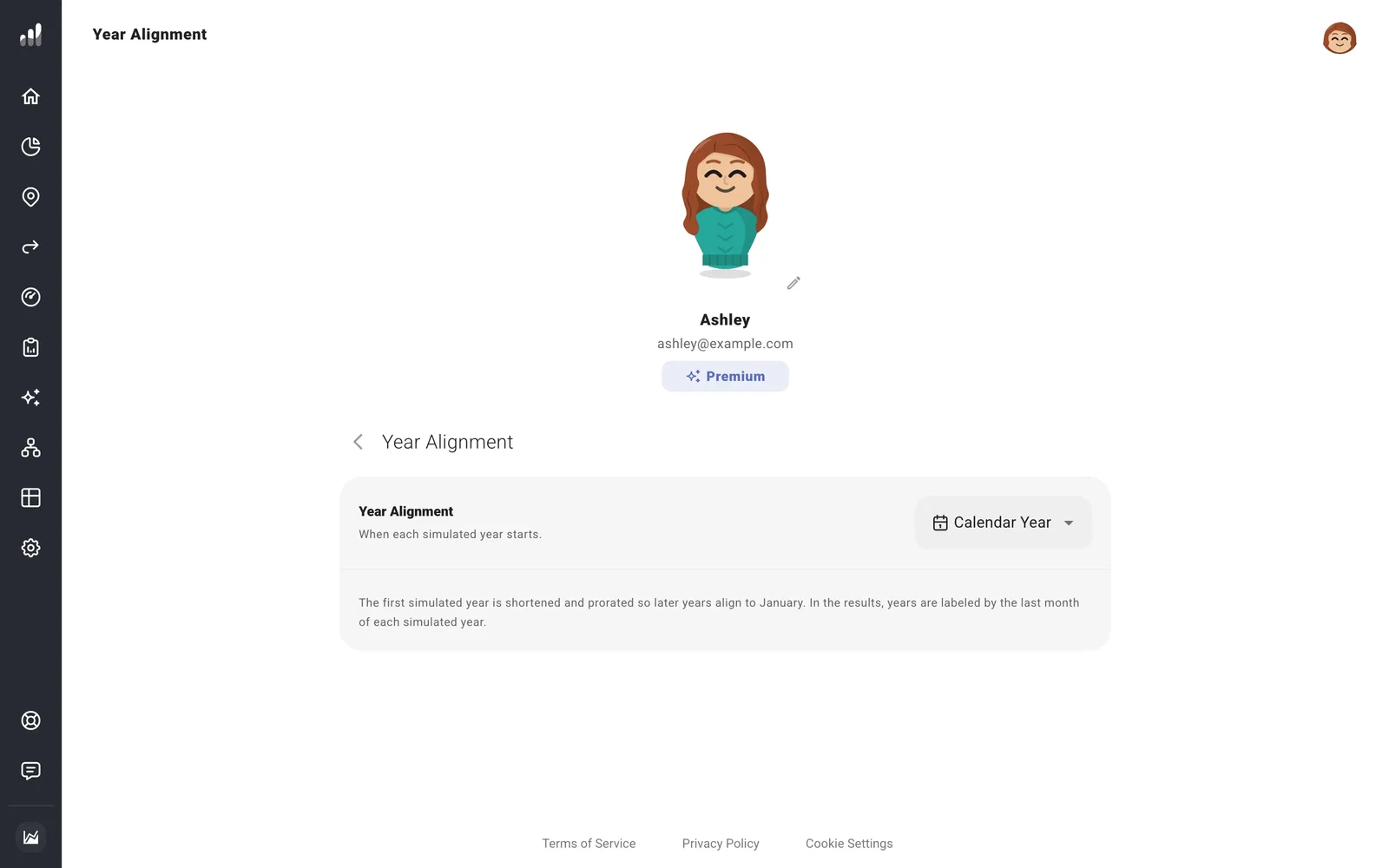
For a different alignment in one plan, open it and go to Settings > Other Settings. Turn on Override Year Alignment and make your choice. Turning it off returns to your account setting.
The year shown in results is the year of that period’s last month. Changing the boundary groups income and spending into different years; dated events keep their dates.
Unless you choose Rolling Year, ProjectionLab shortens and prorates the first year so the following years begin at your chosen boundary. A plan starting in June with Calendar Year alignment has a June-to-December first year.
