Compare
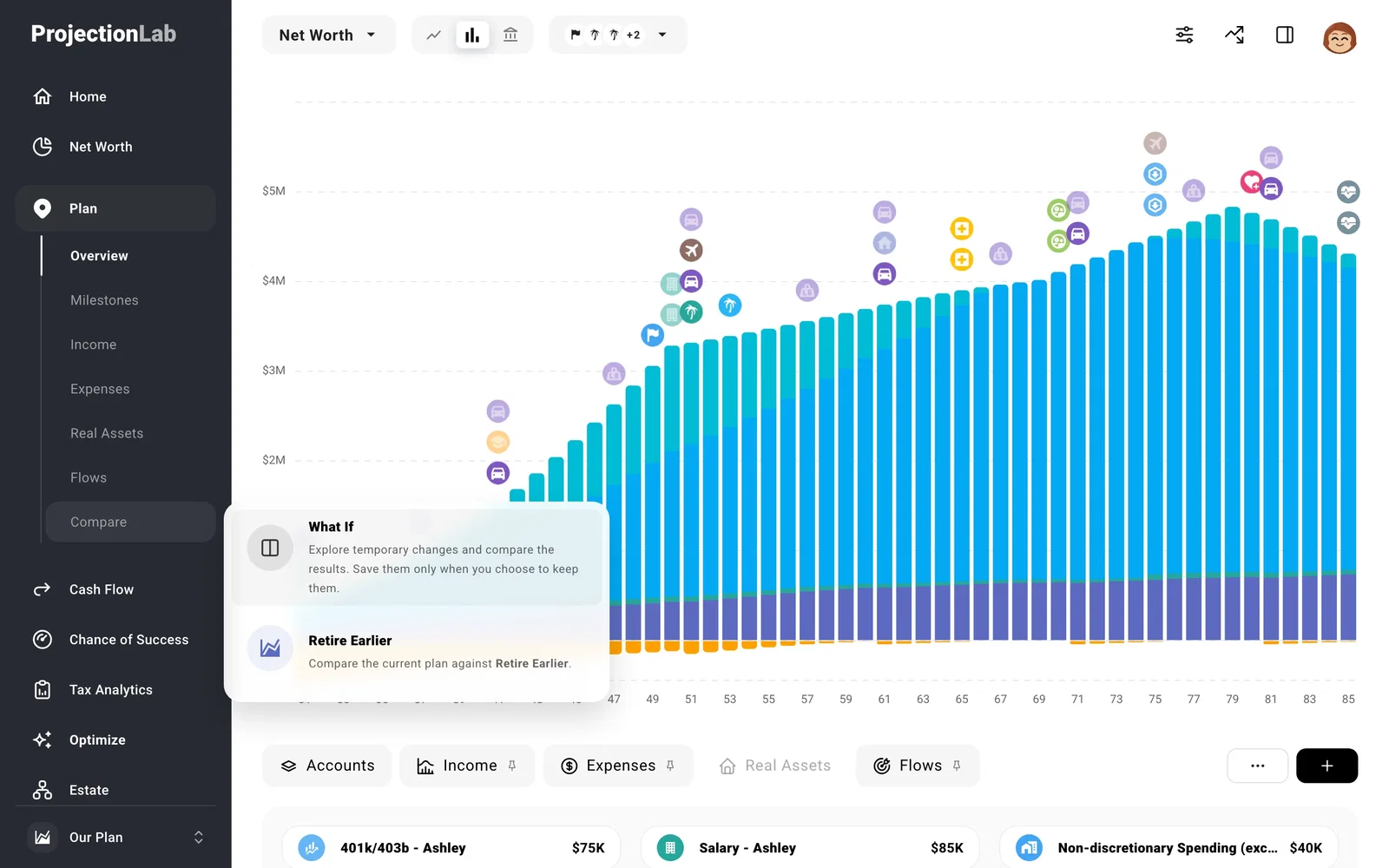
What if you rent instead of buy? What if you took a year off to travel the world? What if you retired five years earlier? Compare lets you quickly visualize how different decisions affect your financial future on the Plan > Overview page.
Try a What If
Select Plan > Compare > What If to quickly test ideas or changes without touching your saved plan. After you make a change, return to Plan > Overview to see the result. Your Baseline plan appears as a dashed line while your edits show as a solid line.
Tip
We recommend changing one thing at a time so it’s easier to see its impact.
Compare saved plans
If you have multiple plans, open the one you want to compare, select Plan > Compare, and pick the other plan. The plan you opened is the solid line; the plan you picked is dashed. Edits to the plan you opened save as normal.
Read the results
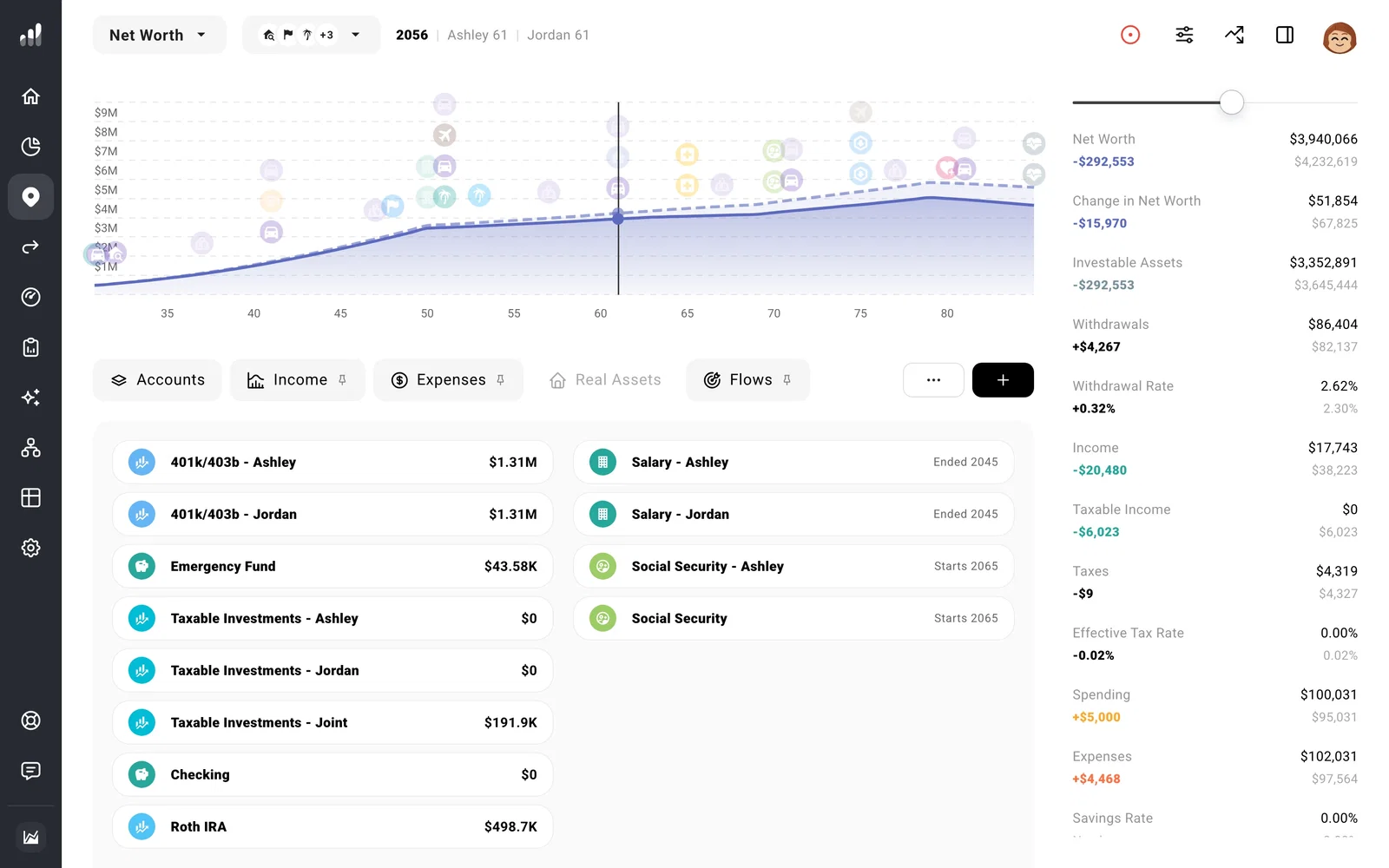
You can switch charts on Plan > Overview while the comparison is open. If you’re testing a year off work, check Income for that year and Net Worth a few years later. Select a year where the results differ, then open Show metrics at the top right. Each row shows the current value, the difference, and the value it’s compared against. Move between years to see when the difference begins and what happens later.
Finish comparing
If you’re in a What If, select the red Compare icon at the top right of the screen and choose:
- Revert changes to return to the plan you started with.
- Keep changes to save the changes to your current plan.
- Save as new plan to create another plan while keeping the original.
Changes to a Net Worth balance or Household detail are shared across multiple plans, and ProjectionLab will warn you before saving.
New saved plans can be found in the plan selector at the bottom left of the navigation.
If you’re comparing two plans, select the red Compare icon and choose Done comparing. Your changes to the plan you opened will remain.
