Trace income, spending, and transfers in Cash Flow
Open Cash Flow from the navigation to see the money that moved in one year of your plan. Choose a year at the top to see how income, withdrawals, expenses, debt payments, and account contributions fit together.
Unlike Plan > Flows, which sets what you want to save or transfer, Cash Flow shows the movements the plan actually completed in the selected year.
Read the chart from left to right. The width of each band shows its amount. Follow a band to see where the money came from and where it went; hover for the exact figure.
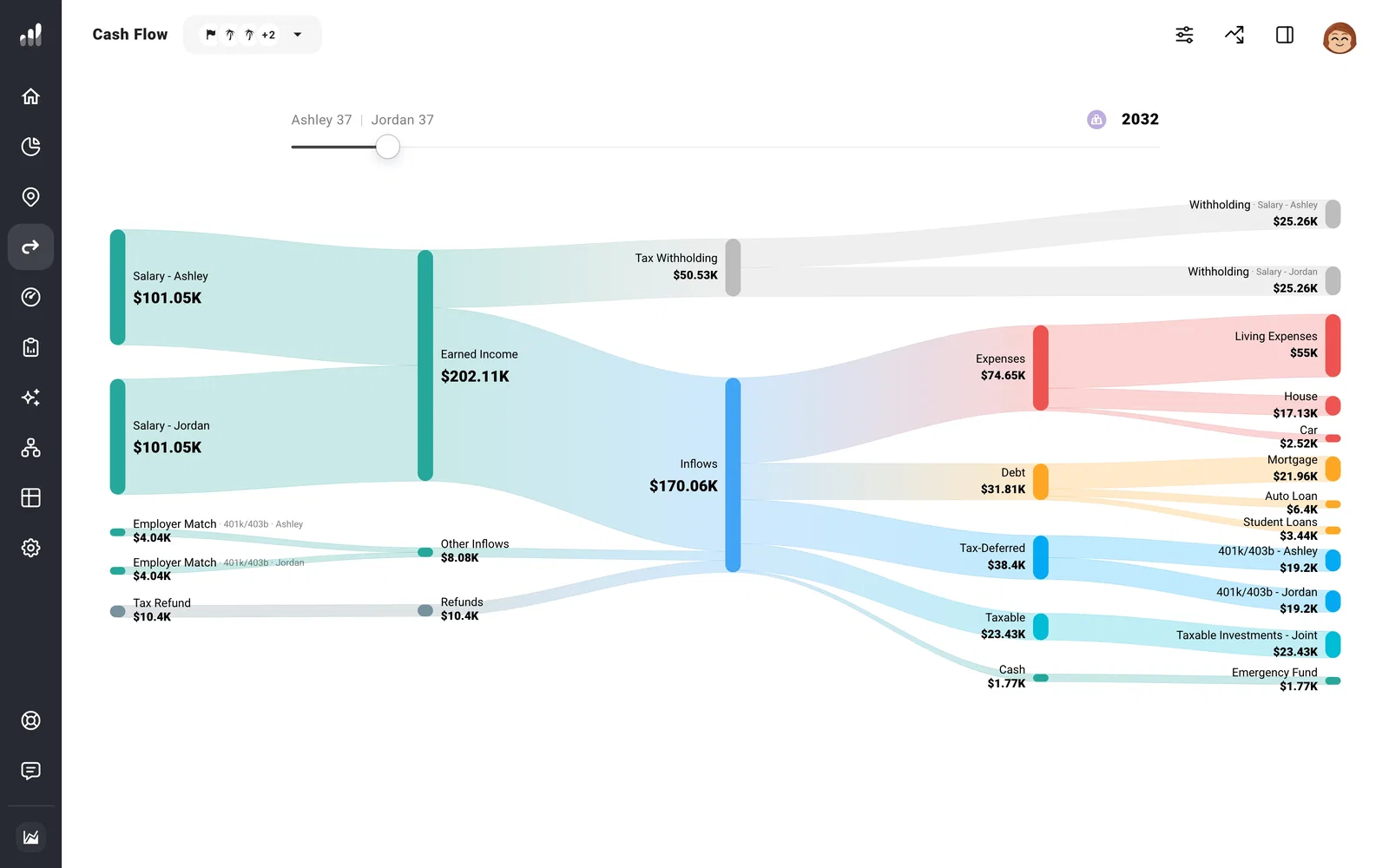
To change an income or expense behind a band, open Events at the top right and edit it in the Events panel without leaving Cash Flow.
Find a specific item
Open Display Options and change Detail from Categorized to Detailed or Granular when you need to find an account, income source, or expense within a larger group. Categorized is useful for seeing the main routes without every individual item.
Inflows are money available to fund the year. Transfers move money between accounts or to another destination; a Roth conversion, for example, appears there rather than as new income. Investment growth changes an account’s balance but is not a cash movement, so it does not appear as a band.
Cash Flow shows tax withholding, payments, and refunds when money moves. For the full tax estimate, use Tax Analytics.
If an expected contribution is missing or smaller than planned, check its timing and funding in Flows. Cash Flow shows what the plan completed in that year, which can be less than a Flow’s target.
In a partial first year, most Cash Flow amounts are shown as annual figures. To check the actual change in net worth, see Change in Net Worth on Plan > Overview.
For balances over the whole plan, return to Plan > Overview or open Reports.
