Create an Advisor Directory listing
If you want prospective clients to find you through ProjectionLab, submit a public profile to the Advisor Directory from your Pro account.
- Open Directory and select Create listing.
- Complete the starred fields and add the details you want visitors to see: your practice, expertise, contact information, pricing, and availability. Headshot Image URL needs a link to the image itself, rather than a webpage containing it.
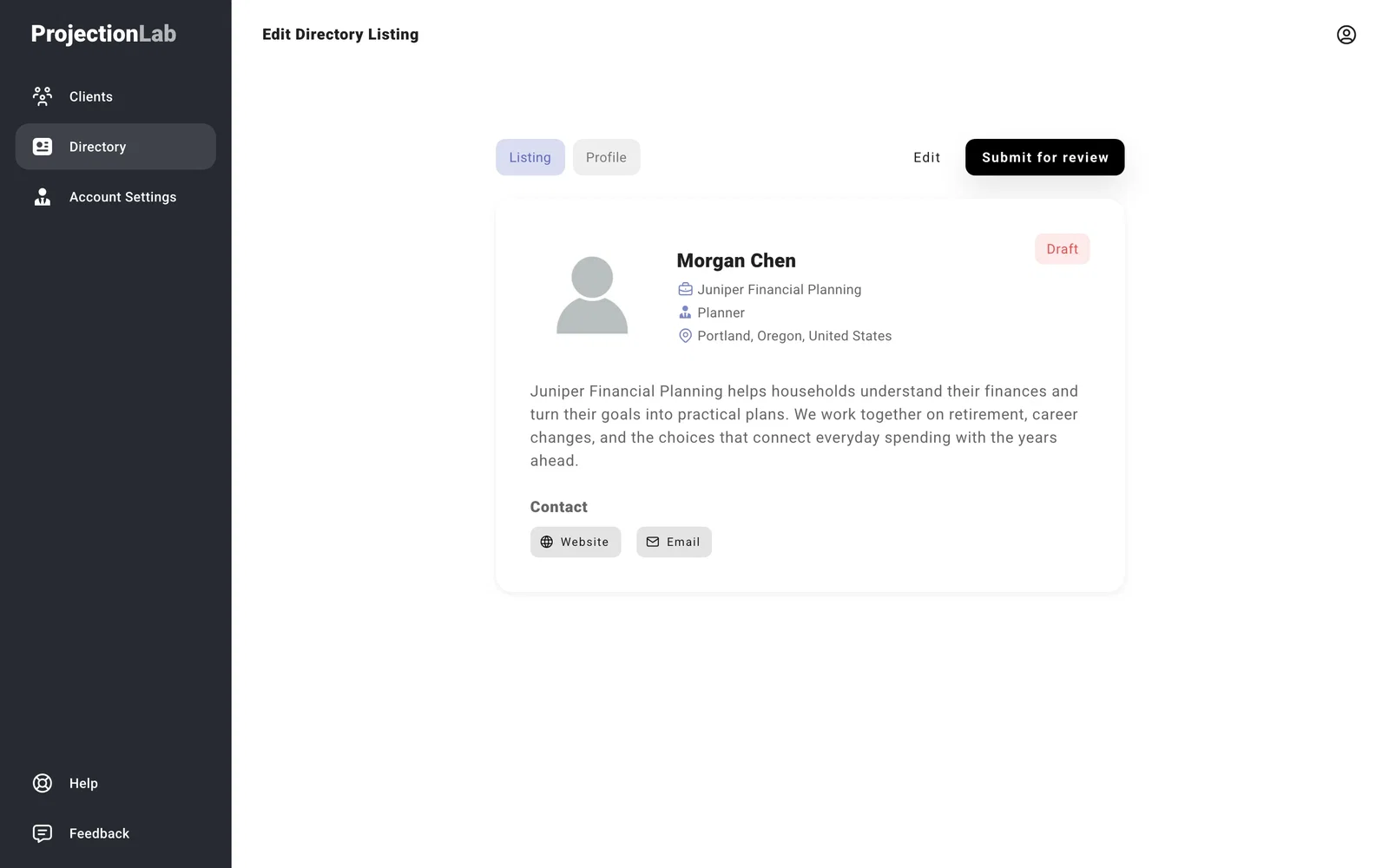
- Select Preview, then check both Listing and Profile. Use Edit to make changes before selecting Submit for review.
Note
Closing the tab before submitting loses unfinished changes. Discard clears the current edit; it doesn’t remove an existing public listing.
Submission sends the listing for review; it doesn’t publish it immediately. Return to Directory to check its status or edit and resubmit. If you’re updating a published listing, visitors keep seeing the approved version while the changes are reviewed.
If Preview won’t open, check the starred fields and the minimum length shown under About. If your chosen Custom URL is already taken when you submit, enter another one.
Your listing’s visibility depends on your Pro subscription status. A directory listing is separate from your private client profiles and doesn’t invite anyone into a plan.
