Import or export balance history
Bring past balances, property values, and debts into Net Worth from a spreadsheet. Add the accounts and assets first so you can match each column to the right one.
Import your spreadsheet
On Net Worth, select the three dots beside Search accounts, then Import historical values.
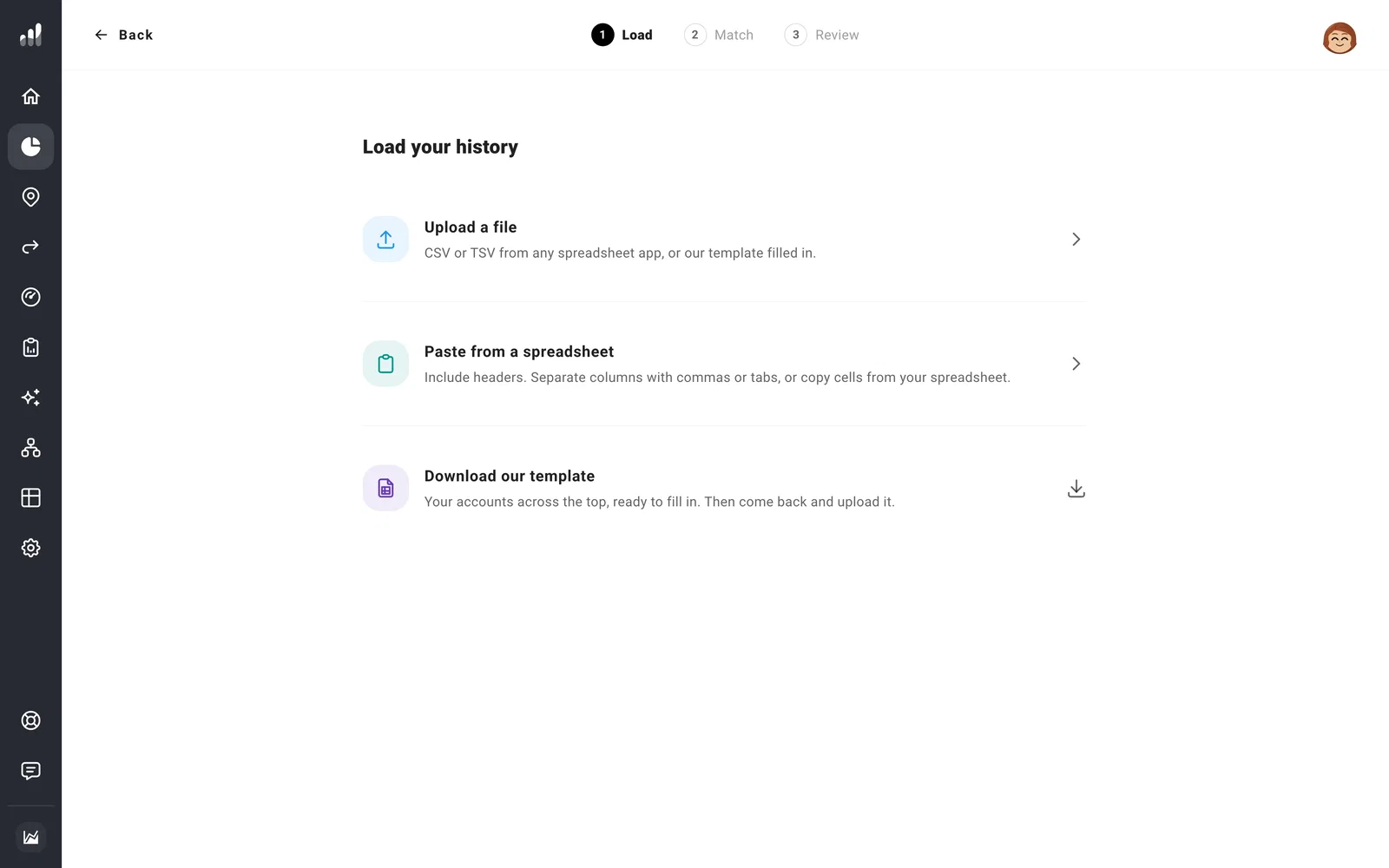
- Upload a CSV or TSV file, or paste cells from your spreadsheet. You can also download the template with your accounts already listed.
- Confirm the dates and match each column to an account, asset, or debt.
- Choose Merge to add or update values while keeping the rest of your saved history. Choose Replace to clear saved values missing from the file between the first and last imported dates for each matched field.
- Review the preview, then select Import (or Apply changes if entries will be removed) to save the ready values.
Important
Leave a cell blank when you’re not providing a value for that date. Enter 0 when the balance was zero. An entry dated today also updates the current balance.
Export history
Open the same three-dot menu and select Export history. Choose the accounts and layout, then select Download CSV or Copy. Save any changes in Edit history first so the export includes them.
A history export contains your balance records. For a copy that also includes your plans and settings, back up your data.
If something looks off
The dates or amounts look wrong
Use Date format and Number format to match your spreadsheet. Adjust layout helps when dates and accounts have been read from the wrong rows or columns.
Some values weren’t imported
Look at the flagged cells in the preview. Import the ready values, then resolve those cells for another pass. For a few individual changes, edit past balances directly.
