Use Life Map to see your plan's milestones
See your working years, retirement, and other chapters of life together in Life Map. It puts your milestones on one timeline, so you can see how much time each chapter covers.
Open Plan > Milestones. Use the map’s title to switch between weeks, months, and years. To view your partner’s life, choose their age under Time Labels in the page’s display options.
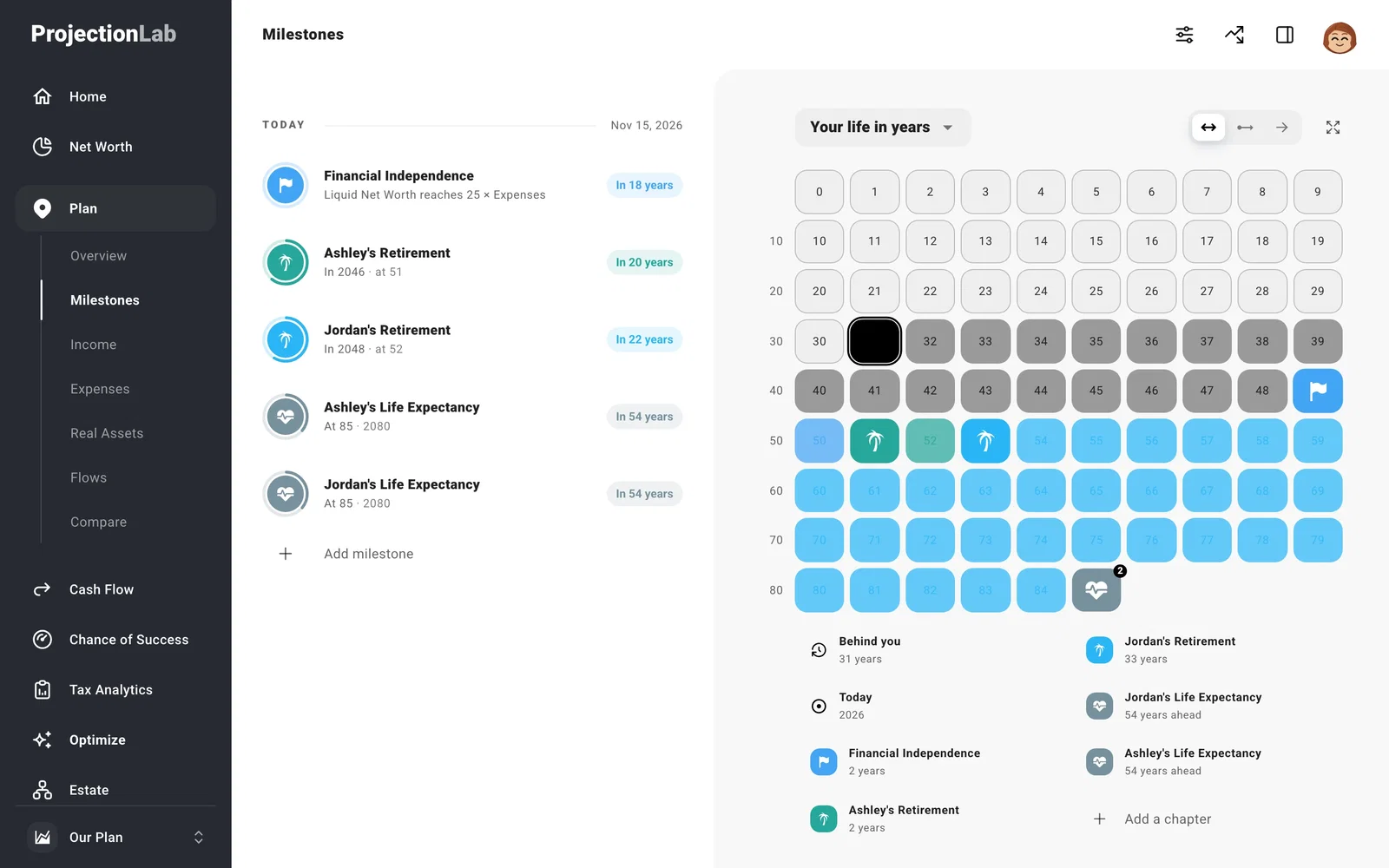
Hollow squares show time already passed; colored squares show the years ahead. Hover over a square to see its date and your age. Select a milestone’s icon or its chapter in the legend to open and edit it.
Add a chapter
A chapter could mark a career change, time abroad, or retirement. Select Add a chapter beside the map to create or choose the milestone that starts it. Moving that milestone moves the start of the chapter too.
You can also open an existing milestone, turn on Start a Chapter, and enter a Chapter Name. Retirement and FIRE (financial independence, retire early) milestones can already have this turned on.
If the map is empty, add the person’s birth month and year in Settings > Household.
