Plan a move from your current home
Moving usually changes more than an address. You may sell one home, buy another, take on a different loan, and pay different property costs. Set those changes up as separate events so you can see each part of the move.
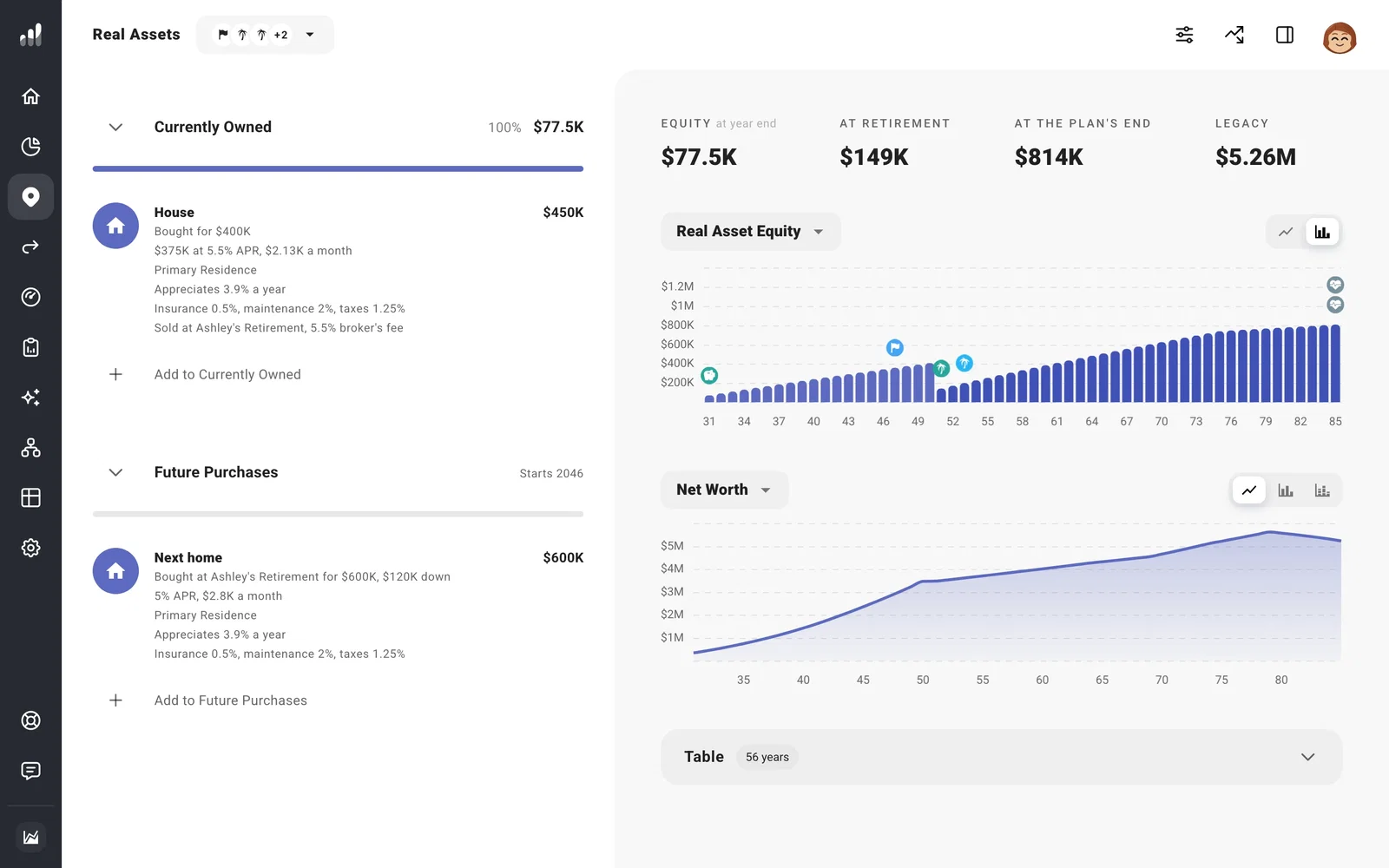
- Open your current home under Plan > Real Assets > Currently Owned. In Sale, set the Timing for when you expect to sell. Add a broker’s fee and choose where any proceeds should go.
- Under Future Purchases, add the new home. Set its Purchase Date, price, and financing. You can use the same move milestone for the sale and purchase so both dates change together.
- If you want the new home’s down payment to come from the sale, send the proceeds to an account in the current home’s Sale settings, then choose that account as the new home’s Funding Source. Check the timing and account balance in Cash Flow, especially if both events occur in the same year.
If the move changes your tax location, add a Move milestone too. Selling or buying a home does not change the plan’s tax location.
Review the new property’s Taxes and Expenses as well as its loan payment. The starting property-tax and insurance rates are based on the plan’s original location, so check them for the place you are moving to. A home marked Primary Residence takes the place of a Rent expense while it is active.
If you are keeping the old property, its Property Type and rental-income settings do not change automatically on the move date. Model a rental property covers those choices and the limits of modeling a change in use.
For more detail on either side of the move, see Plan a home or property purchase and Plan a property sale.
