Where is my data?
If your plans, balances, or subscription seem to have disappeared, it’s usually one of two things: you’re logged into a different account, or something on your network is blocking the connection.
Check your account
Go to Account Settings and check the email shown there. A typo in the address can leave you in a separate account.
Open Authentication to see which sign-in methods are connected. ProjectionLab supports Google sign-in and email with a password. If you used another method that isn’t connected here, sign out and try it. The two methods can also lead to separate accounts with the same email if they were set up separately.
If the account is right, use the plan selector at the bottom of the navigation to look for another saved plan. Check Account Settings > Subscription if Premium is missing too.
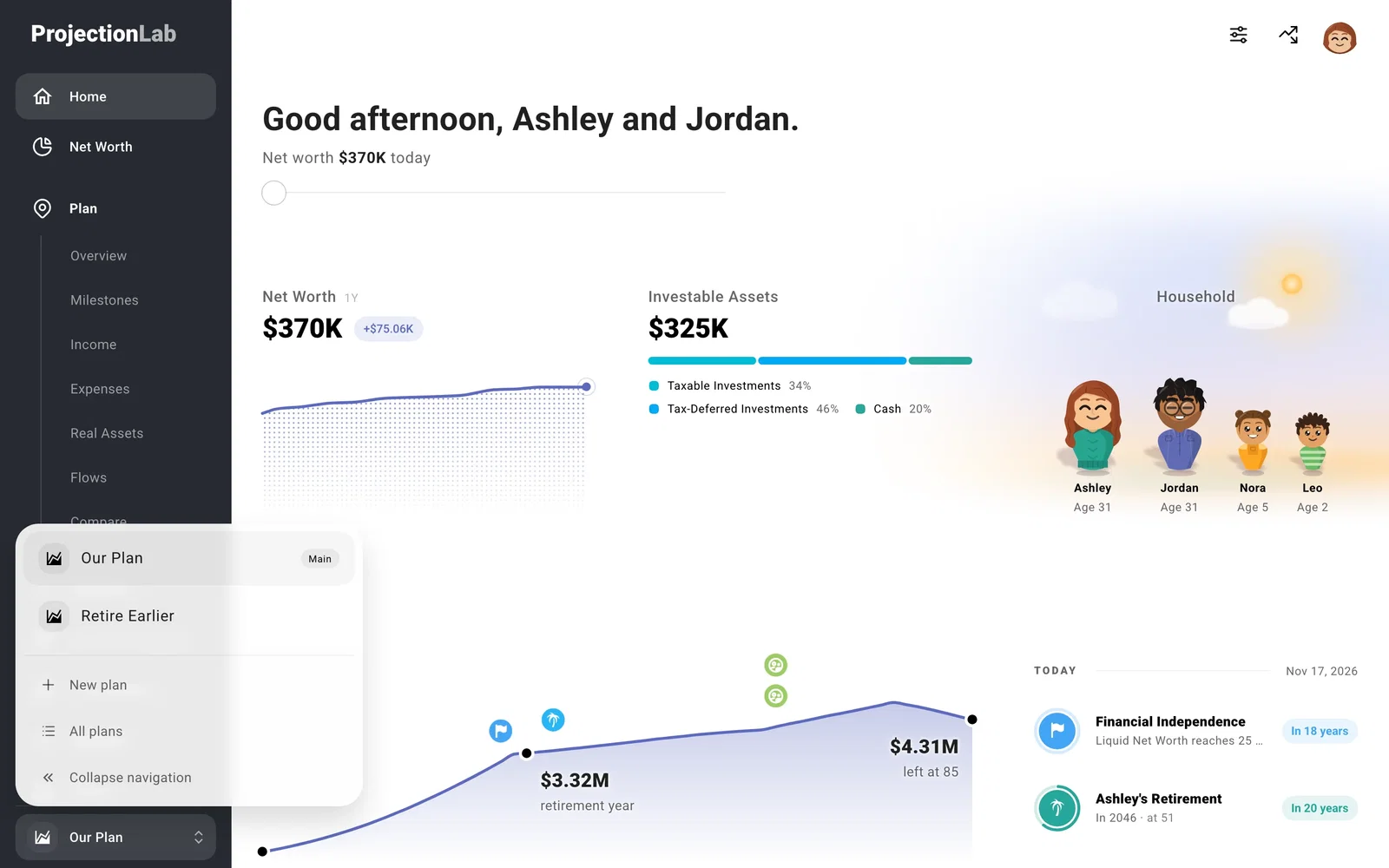
If you recently restored a backup, you’ll see the plans saved in that file. Starting over clears your planning data. If you kept an earlier backup, you can restore that version.
If you recently accepted an advisor invitation, activation replaces your individual planning data with the shared profile.
Check the connection
Try opening ProjectionLab on your phone using cellular data instead of Wi-Fi. If your data appears there, a VPN, browser extension, or network security tool may be blocking the connection on the other device. Fix browser or connection problems has the next checks.
If you still cannot find your data, contact support from the email tied to the account you expected. Tell us which sign-in methods you tried and whether the app loaded on another connection.
